One image, every platform size: the 2026 size table and the Cover versus Contain choice

TL;DR
Resize one image to Instagram, Facebook, LinkedIn, X, YouTube, TikTok and Pinterest sizes in one click. Cover or contain, single downloads or ZIP.
Table of Contents
One image to every platform size in 30 seconds
Platforms do not share a size because they do not share a screen shape. A phone feed is vertical, so Instagram portrait posts are 1080 by 1350 and stories are 1080 by 1920. A desktop feed is wide, so a LinkedIn post image is 1200 by 627 and a YouTube thumbnail is 1280 by 720. Pinterest pins are tall at 1000 by 1500 because the board is a vertical grid. The free Cubbbix Social Media Resizer renders one image at all fourteen sizes in one click, plus any custom size you type, and downloads them one by one or as a ZIP.
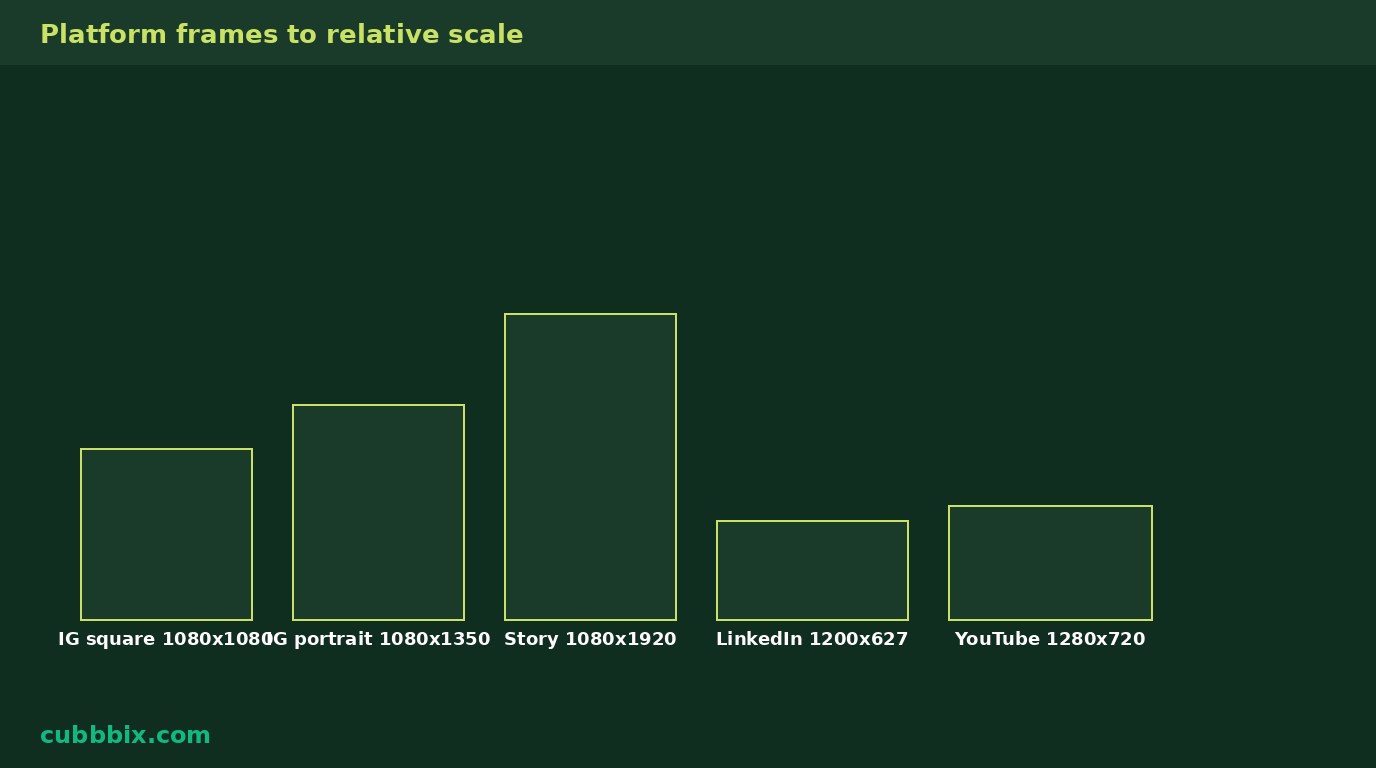
The table on the page was checked against platform guides in November 2026, and it is shown in full so you can spot a stale one. Instagram square 1080 by 1080, portrait 1080 by 1350, story and reel 1080 by 1920; Facebook feed 1080 by 1080 and link preview 1200 by 630; LinkedIn post 1200 by 627, profile 400 by 400, cover 1584 by 396; X post 1280 by 720 and profile 400 by 400; YouTube thumbnail 1280 by 720 and banner 2560 by 1440; TikTok 1080 by 1920; Pinterest pin 1000 by 1500. Platforms change specs without notice, so a platform's own help page beats this table when a post matters.
Figure 1: The frames to relative scale. A phone feed is vertical, a desktop feed is wide, and one image cannot fill both without a choice about cropping.
Cover crops. Contain fits. Pick by what matters.
Cover asks: fill this frame completely, and cut whatever does not fit. The maths is one worked example. A 4000 by 3000 photo into a 1080 by 1920 story scales to 2560 by 1920, because height is the limit, then crops the width from 2560 to 1080, cutting 740 pixels from each side. A centred subject survives that. A subject near an edge does not, and neither does text near an edge. Contain asks the opposite: show the whole image, and fill the leftover bars with a colour you pick. Nothing is cut, but a wide photo inside a tall frame becomes a small strip with big bars. For posts where the whole image matters, Contain is the honest choice. For posts where the frame matters more than the edges, Cover is. The preview shows both, so the choice is visible before anything is downloaded.
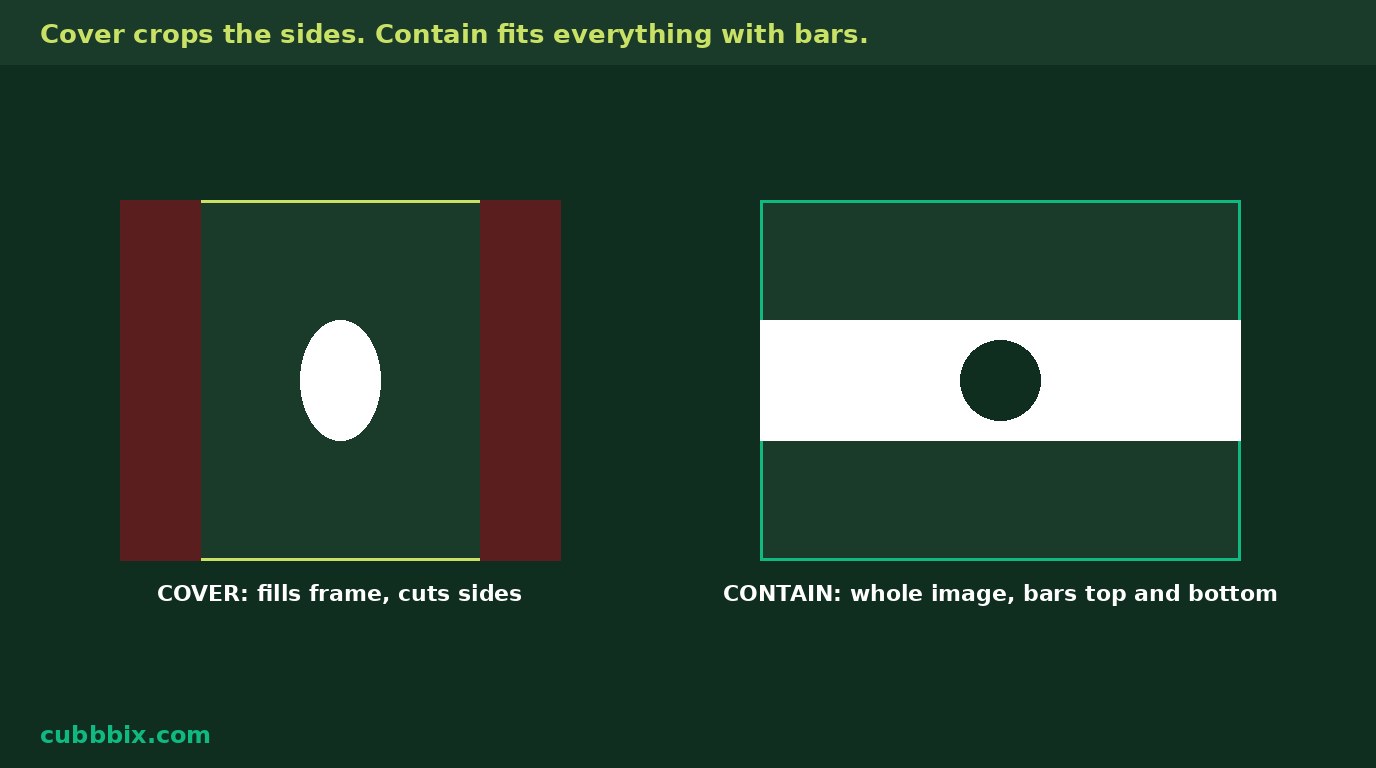
Figure 2: Same wide photo, tall frame. Cover fills the frame and cuts the sides. Contain shows everything and fills the bars. Neither is free.
Resizing cannot add detail
A 500 pixel wide source stretched to a 2560 pixel YouTube banner will look soft, and no setting fixes that. Upscaling is a last resort, not a fix. Start from the largest original you have, and check the preview at the size it will actually be seen: a thumbnail that reads at 1280 wide may be illegible at the 168 pixel width YouTube shows in search results, which is a design problem, not a resize problem. JPG output also drops any clear areas, turning them into the fill colour, and recompresses, so keep the PNG original if you plan to edit again. File sizes are not promised either: a busy photo at 1080 by 1920 PNG can be several megabytes, and some platforms cap uploads, so check the platform's file-size limit for the post you are making.
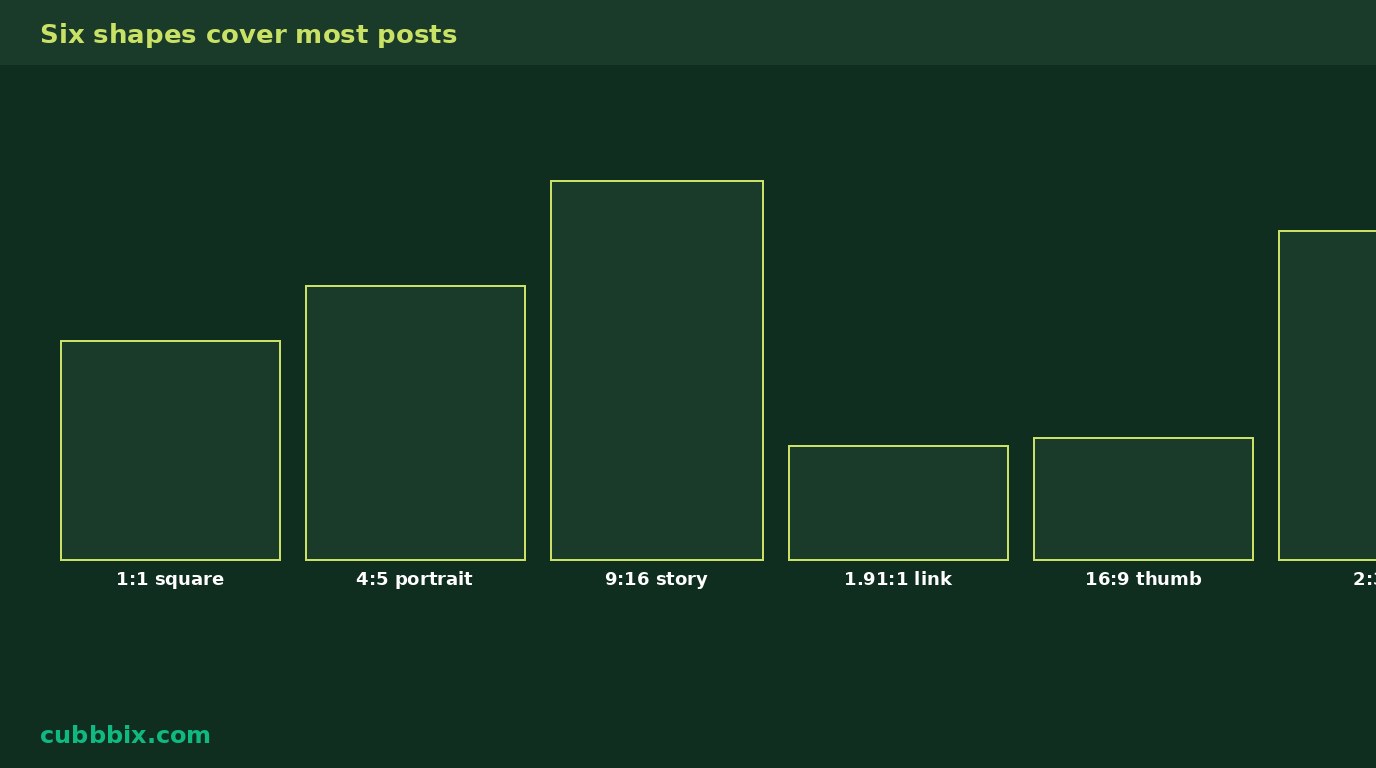
Figure 3: Six shapes cover most posts. Square 1:1, portrait 4:5, story 9:16, link preview 1.91:1, thumbnail 16:9, pin 2:3. Learn the shape, and the pixels follow.
Questions people ask
What is the difference between Cover and Contain?
Cover fills the frame completely and crops the edges that do not fit. Contain shows the whole image and fills the leftover bars with your chosen colour.
Will resizing make a small image sharp at a large size?
No. Resizing cannot add detail. A 500 pixel source stretched to a 2560 pixel banner will look soft. Start from the largest original you have.
Is my image uploaded anywhere?
No. Resizing runs in your browser. Nothing leaves your device.


Was this article helpful?
Comments
Loading comments...