How to compare two spreadsheets and find every changed cell


TL;DR
Compare two spreadsheet exports cell by cell in your browser: changed cells, added rows and removed rows, by position or by key column. Nothing uploaded.
Table of Contents
Compare two spreadsheets in 30 seconds
Two exports of the same list, one from last week and one from today, can differ in hundreds of places, and the differences that matter are rarely the obvious ones. A price changed from 250 to 25, a row deleted in the middle, a city quietly corrected: each one is invisible in a side-by-side scroll. The free Cubbbix Compare Spreadsheets tool turns that hunt into a list you can work through, every changed cell with its old and new value, every added row, every removed row, counted up front.
Two modes cover the two real situations. Position mode assumes both files list the same rows in the same order, which is true when one file is an edited copy of the other: row 1 is compared with row 1, row 2 with row 2, and extra rows at the end are reported as added or removed. Key mode assumes rows may have moved, been inserted or deleted, and lines them up on a column you choose, an ID or an email, so a row that moved to the bottom is recognised as the same row instead of a removal plus an addition.
Figure 1: Changed cells, added rows and removed rows, counted before you start.
Text comparison, on purpose
Cells are compared as text, so "250" and "250.00" are flagged as different even though they mean the same amount. That strictness is a feature: a changed format can break an import even when the value is the same. Trimming and case-insensitive comparison are options, not defaults, because silently ignoring a difference is worse than showing one you can dismiss in a second.
Columns are matched by exact header name, so a renamed column appears as one removed column and one added column, with all its cells listed as removed and added. That looks noisy, but it is honest: the tool cannot know that "Amount" and "Total" are the same column. Rename the column back in one file if you want a clean cell-level diff.
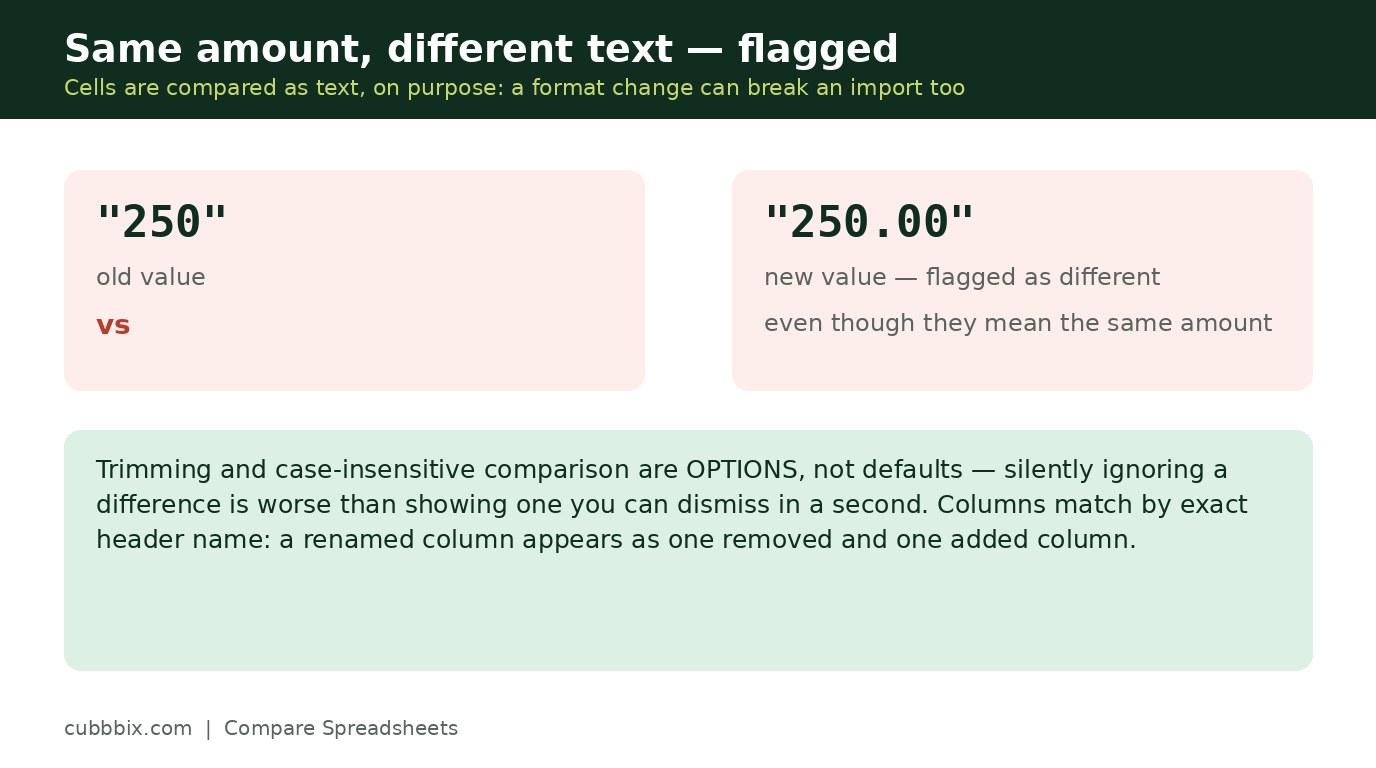
Figure 2: Same amount, different text, flagged. A format change can break an import too.
What to do with the diff
Work through the diff in order: added and removed rows first, because a missing row usually explains several changed cells downstream, then changed cells one by one. The diff output is itself a CSV, so you can save it, filter it in a spreadsheet, or send it to a colleague as the record of what changed. And remember what the diff is not: it compares values only, the way a CSV sees them. Colours, fonts, formulas and formatting are not part of a CSV, so they are not compared, and a file that looks different but holds the same values will correctly report no differences.
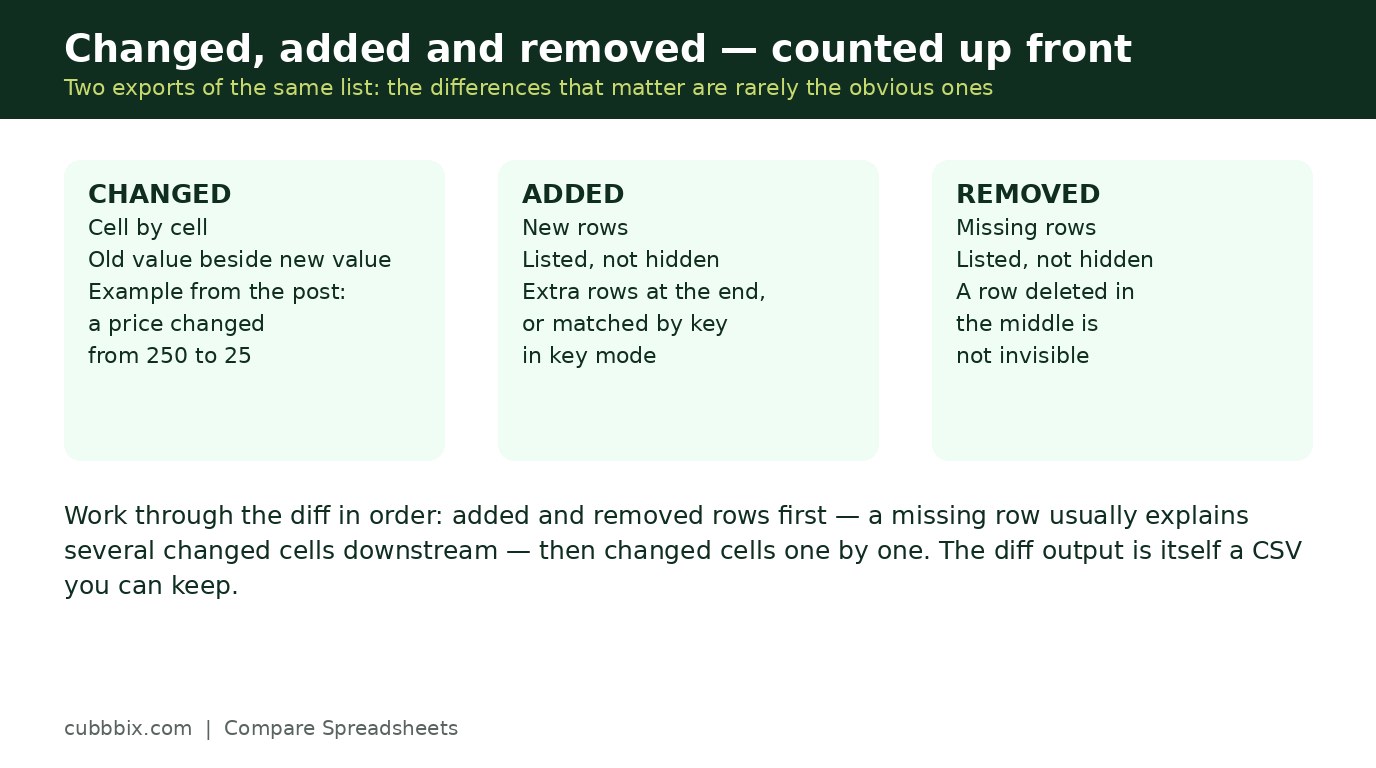
Figure 3: Added and removed rows first, then changed cells. The diff is itself a CSV you can keep.
Questions people ask
Should I use position mode or key mode?
Position mode when one file is an edited copy of the other and the row order is unchanged. Key mode when rows may have been reordered, inserted or deleted, and you have a unique key column such as an ID.
Why does it flag 250 versus 250.00?
Because cells are compared as text, and a format change can break an import even when the value is the same. If that noise bothers you, normalise number formats in both files first.
Is my data uploaded anywhere?
No. Both files are parsed and compared in your browser. Nothing leaves your device.


Was this article helpful?
Comments
Loading comments...