Spreadsheet to contacts: convert a CSV list to a VCF file

TL;DR
Turn a CSV list of names and phone numbers into a phone-ready .vcf file: proper RFC 4180 parsing, column mapping, vCard 3.0 output, in your browser.
Table of Contents
Spreadsheet to contacts in 30 seconds
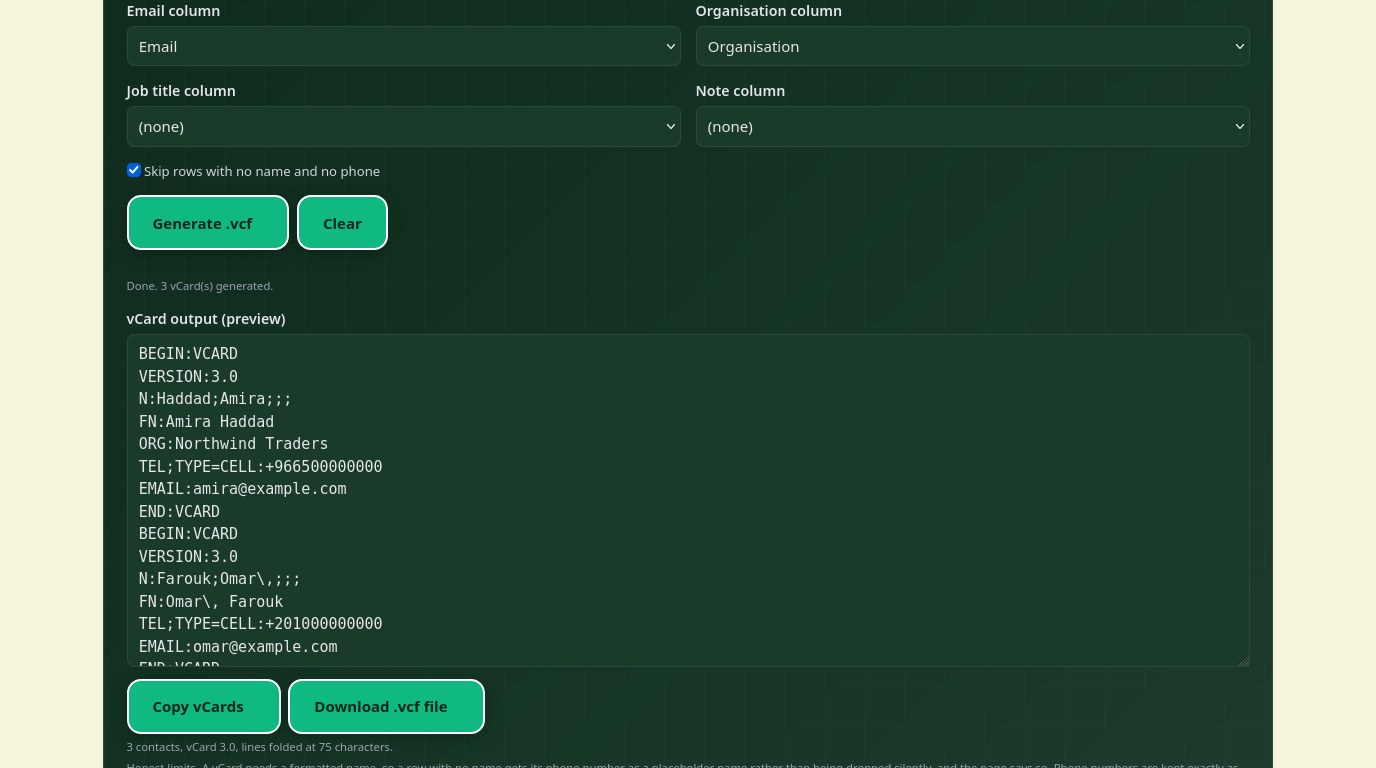
You have a list of contacts in a spreadsheet and you need it on your phone. The free Cubbbix Spreadsheet to Contacts tool takes a CSV list, lets you say which column holds the name, the phone, the email and the organisation, and writes one vCard 3.0 block per row into a .vcf file you can import into Google Contacts, iCloud, Outlook or your phone. Nothing is uploaded.
The first job is parsing the CSV properly. CSV follows RFC 4180: a field that contains a comma, a quote or a line break is wrapped in double quotes, and a double quote inside a field is written twice. A reader that splits every line at every comma breaks on a name such as Haddad, Amira or an address with a comma in it, so this tool parses character by character, tracking whether it is inside quotes, before it maps any column. Only then does it ask which column is which, because a list exported from one system rarely uses the same headers as a list from another.
Figure 1: Parse the CSV properly first, then map columns, then build vCards.
Why mapping is manual
One export calls the column Name, another calls it Full Name, a third calls it Contact, and a fourth has no header row at all. Guessing from headers gets it wrong often enough to matter, and a wrong guess puts phone numbers in the name field. Picking the columns yourself takes ten seconds and is the honest way to do it. The tool pre-selects its best guess from the header names, so most lists only need a glance, but the final say is yours. Without a header row, the dropdowns show Column 1, Column 2 and so on, and you map by position.
The output is vCard 3.0 (RFC 2426), the version with the widest import support across Google Contacts, iCloud, Outlook and Android phones. Each contact is one block: BEGIN:VCARD, VERSION:3.0, FN for the formatted name, N split into family and given names on the first space, TEL, EMAIL, ORG, TITLE and NOTE when the mapped columns have values, then END:VCARD. A contact needs a name to be valid, so a row with no name gets its phone number as a placeholder name rather than being dropped silently, and the page says how many rows that happened to. Phone numbers are kept exactly as written, because reformatting a number you typed is how digits get lost. Long lines are folded at 75 characters with a continuation line starting with a space, as the vCard format requires.
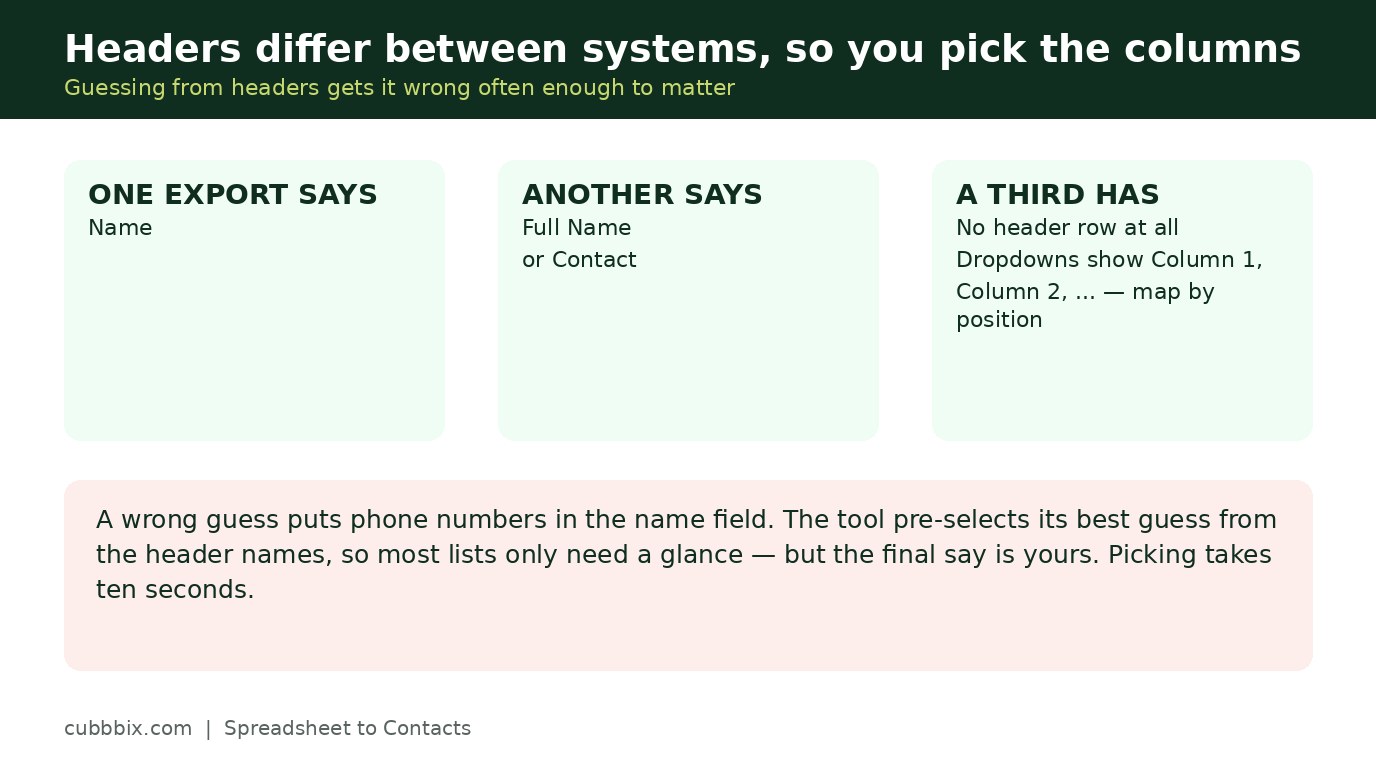
Figure 2: Headers differ between systems, so you pick the columns. Guessing puts numbers in the name field.
vCard 3 or vCard 4
Version 4.0 is RFC 6350, the current standard, and version 3.0 is RFC 2426, the older one. The contact data is the same either way, but 3.0 imports more widely: some phones and older contact apps still mishandle 4.0 details, while 3.0 imports almost everywhere. That is why this tool writes 3.0. If your target system is modern and you need a 4.0-only property, that is a different tool, and this one does not pretend to be it.
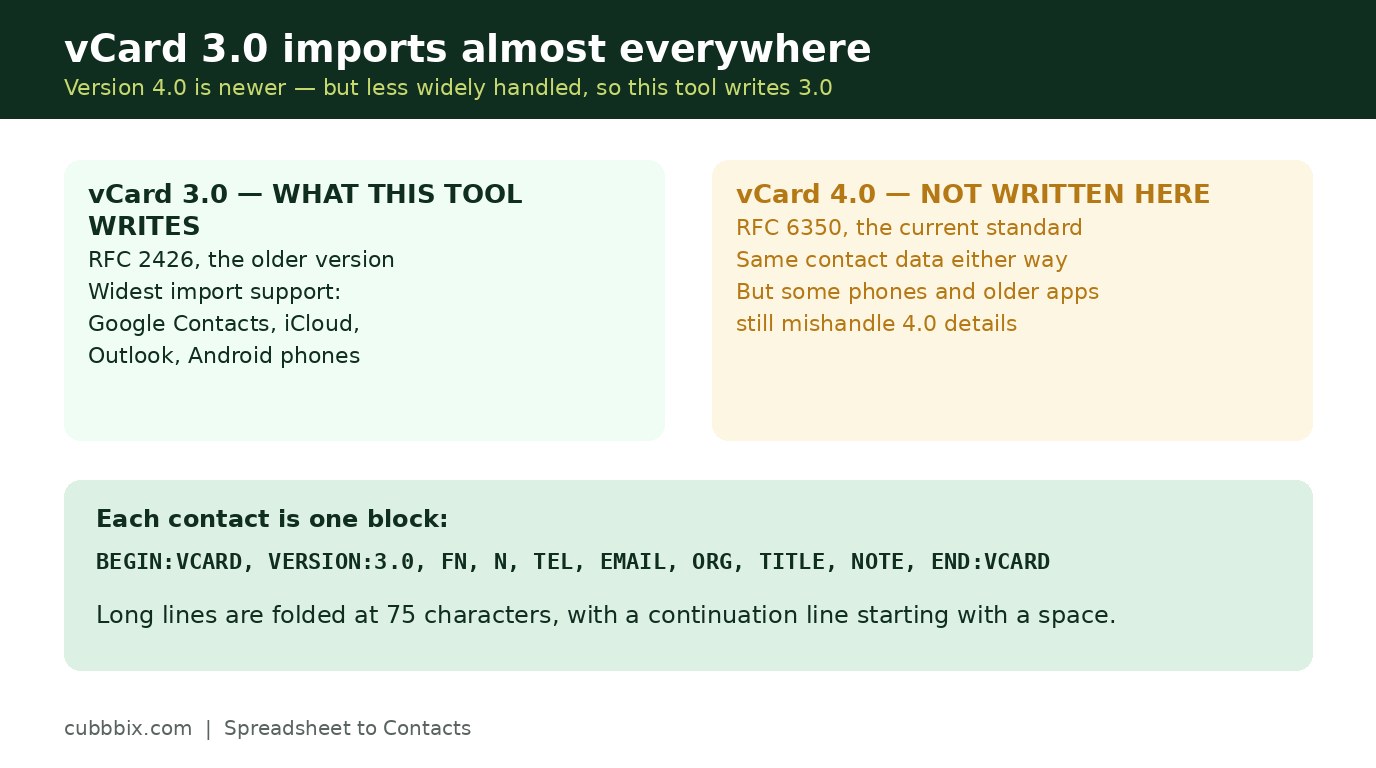
Figure 3: vCard 3.0 imports almost everywhere. vCard 4.0 is newer but less widely handled.
Questions people ask
Does my CSV need a header row?
It helps, but it is not required. With a header row, the mapping dropdowns show the header names. Without one, they show Column 1, Column 2 and so on, and you map by position.
Why is vCard 3.0 used instead of 4.0?
Because 3.0 (RFC 2426) imports more widely than 4.0 (RFC 6350). Some phones and older contact apps still mishandle 4.0 details, while 3.0 imports almost everywhere.
Is my contact list uploaded anywhere?
No. The CSV parsing and the vCard building run in your browser. The list never leaves your device.


Was this article helpful?
Comments
Loading comments...