How to Improve a Home Workstation Before Buying More Equipment

TL;DR
Don't buy new gear yet. Fix a slow PC, posture and glare, declutter the desk, and know when an upgrade is actually worth the money.
Table of Contents
A home workstation can look impressive and still be awkward to use. A second monitor may sit at an uncomfortable angle, video calls may compete with background apps, and a crowded desk may leave no space for the keyboard. Buying another device can leave those problems untouched.
Start by identifying what interrupts your work, then make one change at a time. This approach helps you separate software issues, physical discomfort and genuine hardware limits. It also gives you a clearer specification if you eventually need to replace something.
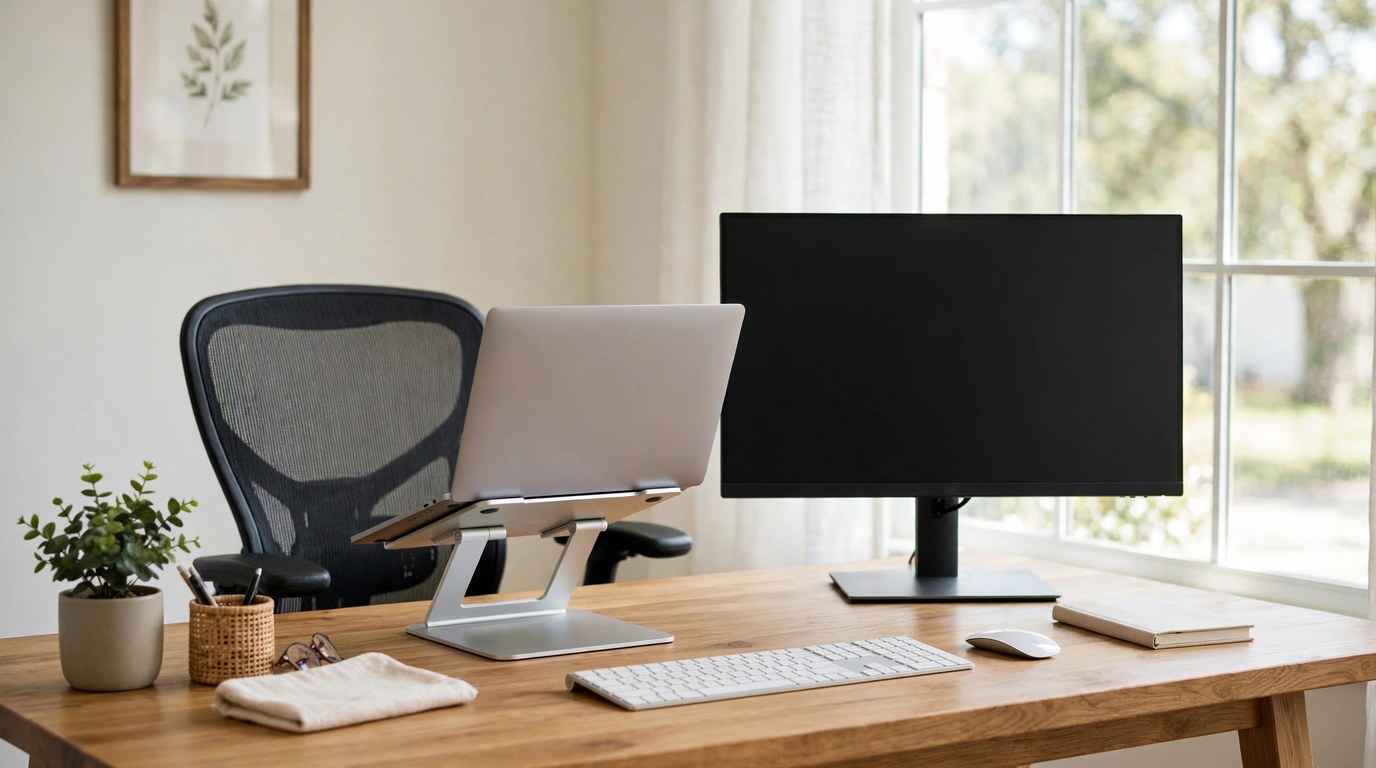
Figure 1: A bright home workstation with a laptop, external monitor, keyboard and mouse.
Describe the work the setup needs to support
Write down the tasks you perform most often. Drafting documents, holding video calls, editing images and running development tools place different demands on a computer. A useful setup is one that handles your regular workload comfortably, rather than one with the longest specification list.
Note where the interruption occurs. Does a meeting become unreliable only when several applications are open? Is small text difficult to read? Do you spend time moving windows because you cannot see the material you need together? These observations give you a starting point you can test.
Keep the test realistic. Open the applications and files you normally use, rather than judging the computer from a clean desktop immediately after a restart. Record the same task before and after a change so your comparison means something.
Remove avoidable software friction first
Microsoft's guidance on improving PC performance in Windows covers checks such as updating software, reviewing startup applications and freeing storage. Work through the relevant steps before assuming that a slow session requires a replacement computer.
Review applications that launch automatically and disable only those you understand and do not need at startup. Keep security software and essential services in place. Restart after making changes, then repeat the task that was causing trouble.
Check the storage you use for work. Large duplicate downloads and forgotten installers can occupy space without helping your daily workflow. Back up files you need before removing anything, and use the operating system's supported storage tools rather than deleting unfamiliar system folders.
Avoid installing several optimisation utilities at once. They can introduce background processes of their own and make it harder to identify which change helped. A short record of what you altered is more useful than making ten adjustments and losing track.
Make the screen and input devices comfortable
Position the equipment around the way you sit and work. A laptop screen and keyboard are physically connected, which can make it difficult to place both comfortably for a long session. An external keyboard and pointing device may let you position the screen more freely without replacing the laptop.
The Health and Safety Executive's workstation checklist provides a structured way to review the screen, keyboard, mouse, chair and work environment. Use it to identify adjustments rather than treating discomfort as a reason to buy an entire new desk setup.
Check glare at the times you actually work. A screen that looks fine early in the morning may be difficult to read when sunlight reaches the desk. Repositioning it or adjusting the blinds may help more than raising brightness.
Give the keyboard and mouse enough clear space. Keep frequently used items within easy reach and move rarely used accessories elsewhere. A large monitor does not compensate for an arrangement that makes every small movement awkward.
Use browser tools to keep small tasks lightweight
A quick calculation or document conversion does not always need a permanent desktop application. Bookmark a few utilities that you use regularly and group them by task, such as documents, calculations and development. Keep the list short enough that you can find a tool without another search.
For a non-sensitive development sample, Cubbbix's JSON formatter can help present data in a more readable structure. Remove personal information, credentials and access tokens before putting a sample into any unfamiliar tool. Formatting a file is not the same as validating its business meaning.
Cubbbix's PDF compressor offers compression settings for reducing attachment size. Use a non-confidential sample first and inspect the output. If your employer or client has approved tools and data-handling rules, use that workflow instead.
The convenience of a browser tool should not obscure where the information goes. Check processing and retention details for the specific utility. Keep original files and make sure the exported result remains readable.
Match each problem to the smallest useful change
The following checks help distinguish a purchase that addresses a real limit from one that simply adds equipment. The right answer depends on the tasks and devices you already have.
| Problem | First check | Possible targeted change |
|---|---|---|
| Slow startup | Unnecessary startup apps | Review automatic launches |
| Awkward posture | Screen and keyboard position | Separate input devices |
| Unclear video calls | Microphone and room noise | Reposition or replace the microphone |
| Crowded display | Window layout and scaling | Adjust layout before adding a screen |
| Large attachments | File contents and upload limit | Create a checked smaller copy |
Set a purchase limit before comparing products
If the tests point to an upgrade, list the requirement it must satisfy. For a monitor, that might mean readable text at your working distance and the correct connection for your laptop. For a microphone, it might mean clearer calls in your existing room rather than studio features you will never use.
Include the accessories needed to make the item work. Adapters, a compatible stand or replacement cables can change the final cost. Check return conditions and warranty details before ordering, especially when considering refurbished equipment.
Loans are one option some UK households consider for a necessary replacement, but any repayment belongs in the household budget before a purchase is agreed. Compare the total cost and terms, consider saving or a lower-cost repair first, and keep personal borrowing separate from business finance. Borrowing is not automatically suitable because equipment is useful.
Keep optional improvements separate from urgent replacements. A computer that cannot perform essential work presents a different decision from a working device you would simply prefer to replace. Writing down that distinction can prevent a useful shopping exercise from becoming a complete redesign of the room.
Test the changes through an ordinary working week
Use the revised setup for the tasks that originally caused problems. Check whether calls are clearer, files are easier to handle and the physical arrangement feels more comfortable. If a problem remains, revisit its cause before adding another purchase.
Keep maintenance simple: review updates, tidy the work area and remove applications you no longer use. Store the model numbers and warranty records for equipment you buy so future troubleshooting is easier.
A dependable home workstation is built around the work you need to do. Careful software checks, a comfortable physical layout and a small set of useful browser tools can make an existing setup easier to live with. When a purchase becomes necessary, you can choose it against a specific requirement instead of hoping that newer hardware will solve everything.


Was this article helpful?
Comments
Loading comments...