How to resize an image by pixels online (exact sizes for social media, print and forms)
TL;DR
Set an image to exact pixel dimensions in your browser with the free Cubbbix Resize Pixel tool: type the width and height, or pick a preset for Instagram, YouTube, X, Facebook, LinkedIn, print or a passport photo. Your files never leave your device.
Table of Contents
Resize by pixels in 30 seconds
Open Cubbbix Resize Pixel, add a photo, and type the numbers. Below: the exact size for each platform, the print math for paper, and what resizing does to file size.
You resize an image by pixels when a platform, a form or a print shop names an exact width and height: 1080 × 1080 for an Instagram post, 1280 × 720 for a YouTube thumbnail, 600 × 600 for a US passport photo. An upload at the wrong size gets cropped, padded or shrunk by the platform.
The free Cubbbix Resize Pixel tool sets those numbers exactly. It runs in your browser, accepts JPG, PNG, WebP, GIF, SVG and BMP files, and works as a picture pixel resizer for one photo or a whole batch queue. Your photos never leave your device.
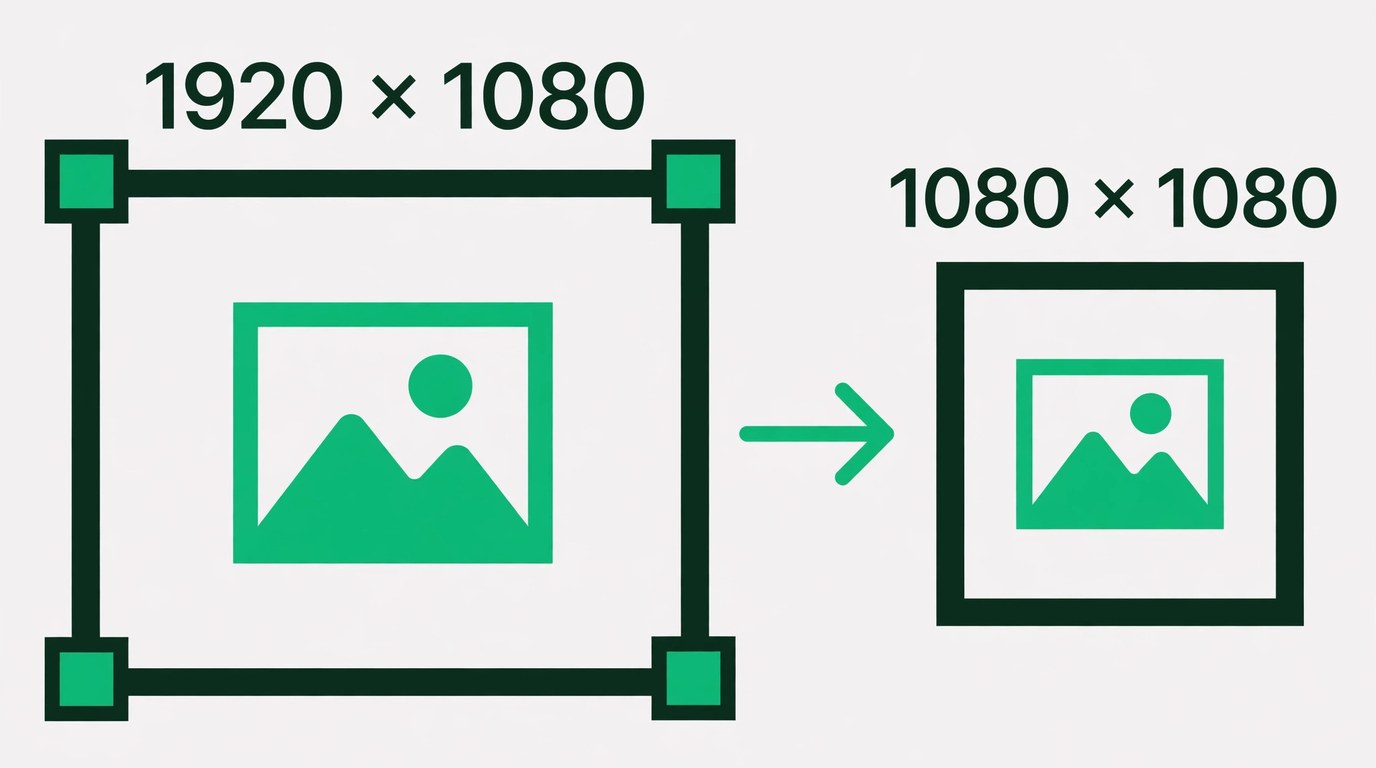
Figure 1: A 1920 × 1080 frame resized down to 1080 × 1080, the Instagram post size.
What resizing by pixels changes
An image file is a grid of pixels. Its pixel size is the grid width multiplied by the height, so a 1920 × 1080 image holds 2,073,600 pixels. Resizing rebuilds that grid at a new width and height, and the display size, the print size and the file weight all follow from the new count.
Resizing down deletes pixels. A 4000 × 3000 camera photo resized to 1080 × 810 keeps 874,800 of its 12,000,000 pixels, and the deleted detail is gone from the new file. Resizing up runs the other way: the software invents new pixels by interpolation, estimating each new value from its neighbours. An enlarged image gains no new real detail, so a 480 px photo stretched to 1920 px looks soft.
Cubbbix Resize Pixel uses bicubic resampling, which weighs a block of neighbouring pixels for each new value and keeps edges smoother than a basic nearest-neighbour resize. Every resize pixel online tool redraws the grid this way; the differences sit in the presets, the batch handling and where your file gets processed. The tool also scales by percentage: 25%, 50%, 75%, 100%, 150% and 200%.
The pixel sizes people ask for
Platforms publish exact sizes, and every size in this table is a one-click preset in Cubbbix Resize Pixel, grouped under Social Media, Display and Web Resolutions, Icons and Favicons, and Print and ID Documents.
| Use | Recommended size |
|---|---|
| Instagram post | 1080 × 1080 px |
| Instagram portrait post | 1080 × 1350 px |
| Instagram story or reel | 1080 × 1920 px |
| YouTube thumbnail | 1280 × 720 px |
| YouTube channel banner | 2560 × 1440 px |
| X (Twitter) post | 1600 × 900 px |
| Facebook shared image | 1200 × 630 px |
| LinkedIn post | 1200 × 627 px |
| Website hero image | 1920 × 1080 px |
| Favicon | 32 × 32 px |
| US passport or visa photo | 600 × 600 px at 300 DPI |
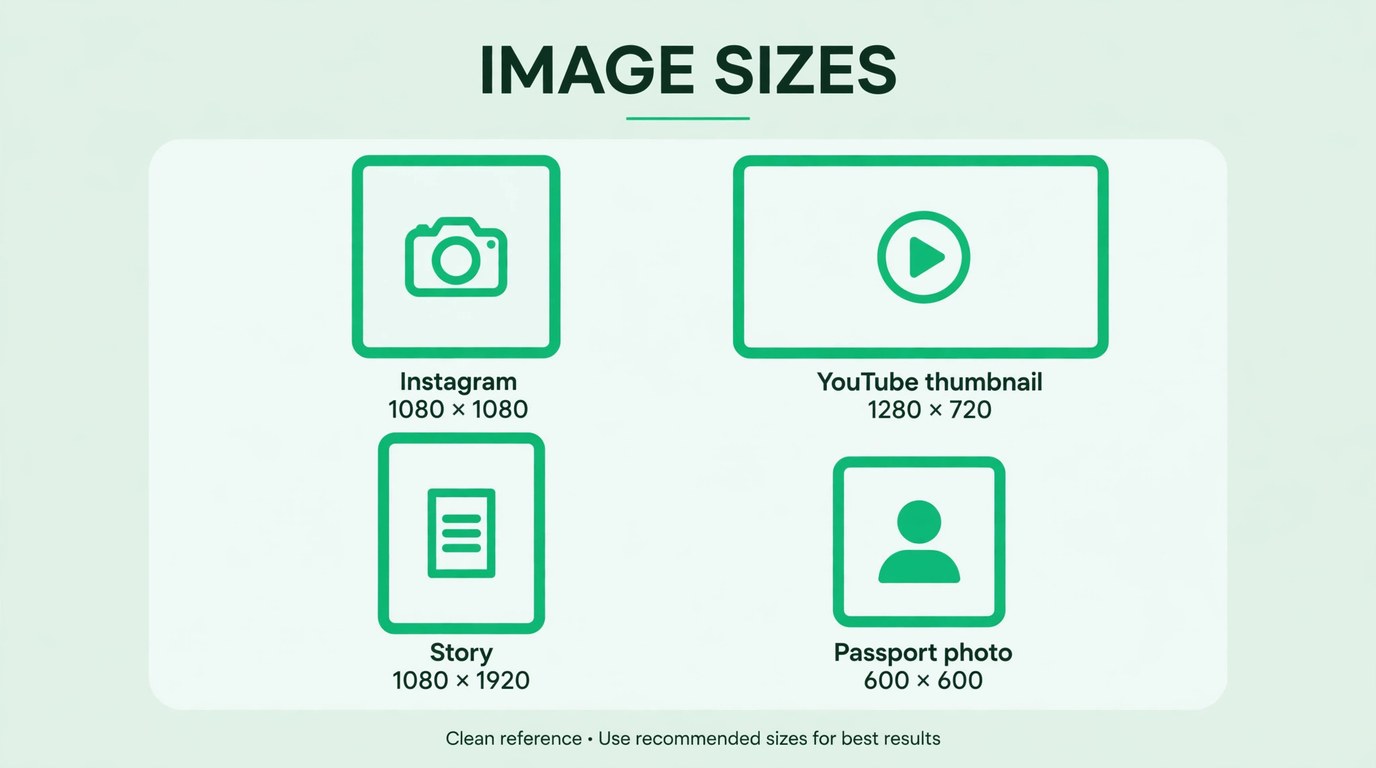
Figure 2: The four sizes readers ask for most, drawn in their real shapes.
Two entries deserve a note. Browsers display favicons at 16 × 16 or 32 × 32, and the preset list covers 16, 32 and 64, so one resize covers every tab and bookmark bar. The passport size, 600 × 600 at 300 DPI, comes from the print rule below: 2 inches × 300 dots per inch = 600 pixels per side.
How to resize an image by pixels
Six steps, start to finish:
- Open the tool and add your image. Open Cubbbix Resize Pixel, click to browse, or paste from the clipboard with Ctrl+V. For a group of photos, add them all to the queue first.
- Pick a preset or type the size. Choose a standard size from the preset menu, or type the exact width and height. Leave the aspect-ratio lock on to keep the photo in shape; turn it off only when a form demands both numbers exactly.
- Choose a fit mode. Proportional Fit scales the photo to sit inside the target size with its proportions intact. Exact Stretch fills the exact width and height and can distort the photo, which suits ID photos and fixed form boxes.
- Pick the output format. JPG suits photos and carries a quality slider you set yourself. PNG is lossless and suits screenshots and graphics. WebP suits websites.
- Check the preview. The tool shows the result at the new size before you save it.
- Download. Save the resized file on its own, or click Download All (.ZIP) to take every file in the queue in one archive.
Downloads are new files at the new size. Your originals stay untouched on your device.
Pixels, DPI and print size
One formula connects pixels to paper: pixels = inches × DPI. A photo printed at 2 × 2 inches at 300 DPI needs 600 × 600 pixels. Printed at 150 DPI, the same 2 × 2 inches needs 300 × 300 pixels, and the print looks softer at close range because each inch carries half the detail.
| Print size | DPI | Pixels you need |
|---|---|---|
| 2 × 2 in (passport) | 300 | 600 × 600 px |
| 4 × 6 in (photo print) | 300 | 1200 × 1800 px |
| 5 × 7 in (photo print) | 300 | 1500 × 2100 px |
| A4 (8.27 × 11.69 in) | 300 | 2480 × 3508 px |
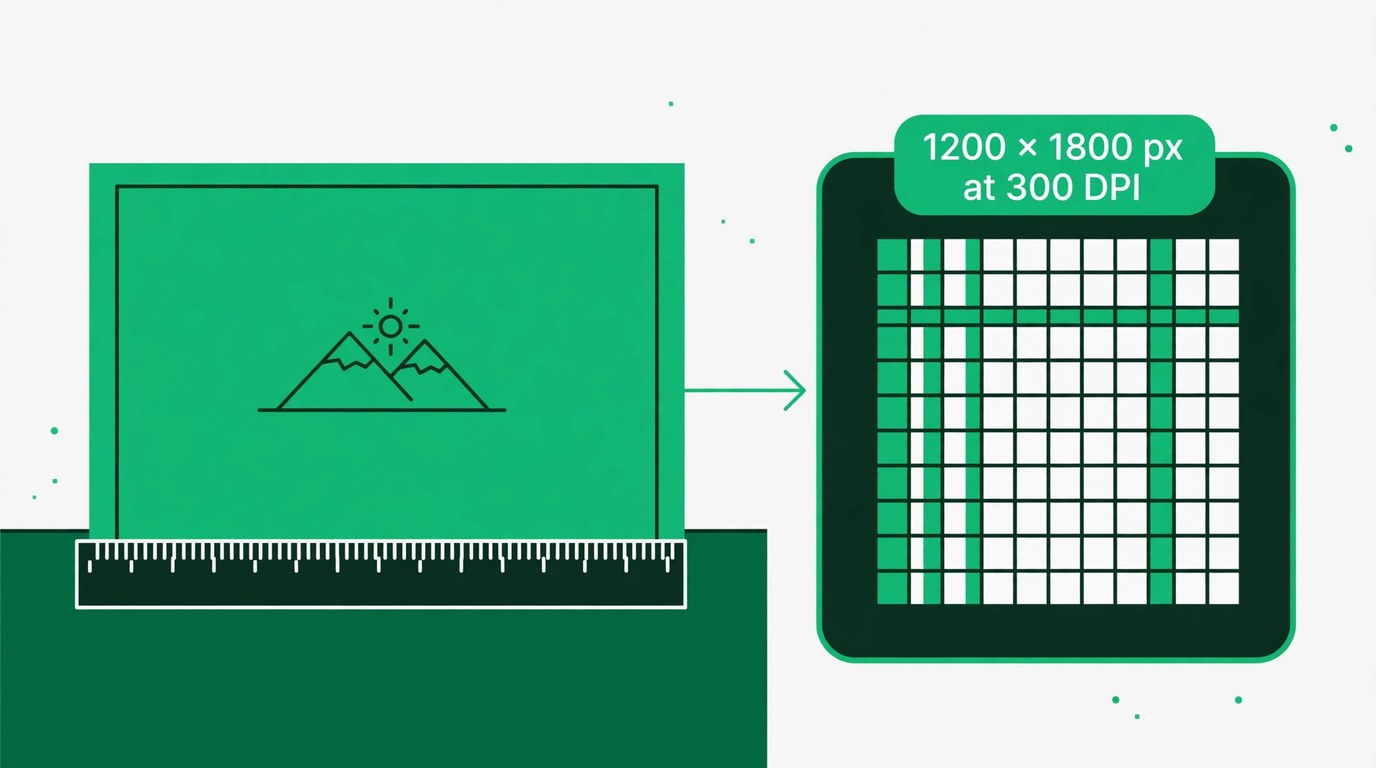
Figure 3: A 4 × 6 inch print at 300 DPI needs 1200 × 1800 pixels.
On a screen, the pixel count alone decides how large an image displays. The DPI value stored in a file is an instruction for printers, and screens ignore it: a 1920 × 1080 image covers the same area of a monitor at 72 DPI and at 300 DPI. In Cubbbix Resize Pixel, switch the unit to inches or centimetres and a DPI selector appears, offering 72, 96, 150, 300 and 600. Enter the print size and the tool works out the pixels.
What happens to file size
Three settings decide the weight of the resized file: the pixel dimensions, the output format, and, for JPG, the quality slider. Dimensions carry the most weight. A resize from 6000 × 4000 to 1920 × 1080 cuts the pixel count from 24,000,000 to 2,073,600, a drop of about 91%, and the file size falls with it.
Format and quality set the rest. Example: a detailed 1920 × 1080 photo saved as JPG at quality 90 might weigh about 900 KB; at quality 75 it might land near 450 KB, with the difference showing mainly in skies and gradients. Treat those numbers as an illustration of the range: a plain screenshot compresses far smaller than a busy street scene at identical settings.
PNG output is lossless, so it keeps every pixel value and runs larger than JPG at the same dimensions; pick it for screenshots, text and graphics with sharp edges. WebP gives smaller files than JPG at a similar quality setting. And when the dimensions are already right and the file is still too heavy for an upload limit, resizing has done its part: run the file through Cubbbix Compress Image, which lowers the file size with the dimensions unchanged.
FAQ
Is resizing by pixels the same as compressing?
No, the two jobs change different things. Resizing changes the pixel dimensions, the width and height of the grid. Compressing keeps the same dimensions and stores the same picture with less data per pixel. Large photos headed for a strict upload limit sometimes need both, resize first and compress second.
Can I enlarge a small image to 1920 pixels?
Yes. The tool accepts any target size and builds a 1920 px wide file from a smaller photo. The added pixels come from interpolation, estimates based on neighbouring pixels, so the enlarged photo looks softer than one that started at 1920 px. On screen the softness is easy to miss; in print it shows.
How do I resize an image to an exact pixel size for a form?
Read the form first and note its stated width, height and file-size limit. To resize pixel image files to that box, type the exact numbers into the tool, turn the aspect-ratio lock off, and choose Exact Stretch if the form demands both dimensions to the pixel. Download as JPG, check the file against the form size limit, and compress it if it runs over.
Which output format should I pick?
JPG for photos and for forms, with the quality slider near 80 to 90 for a good balance of weight and clarity. PNG when the image holds text, sharp edges or a see-through background and must stay lossless. WebP for websites, where it gives a smaller file than JPG at a similar quality setting.
Do my photos get uploaded?
No. Cubbbix Resize Pixel runs 100% in your browser with HTML5 Canvas, so your files stay on your device and no copy reaches a server. There is no sign-up, and closing the tab ends the session with nothing stored.


Was this article helpful?
Comments
Loading comments...